Deploy a simple server using AWS + Terraform
Terraform is an Infrastructure as Code( IAC ) tool that lets you define both cloud and on-prem resources in human-readable configuration files, that you…

On this page (7)
What is Terraform? #
Terraform is an Infrastructure as Code(IAC) tool that lets you define both cloud and on-prem resources in human-readable configuration files, that you can version, reuse, and share.
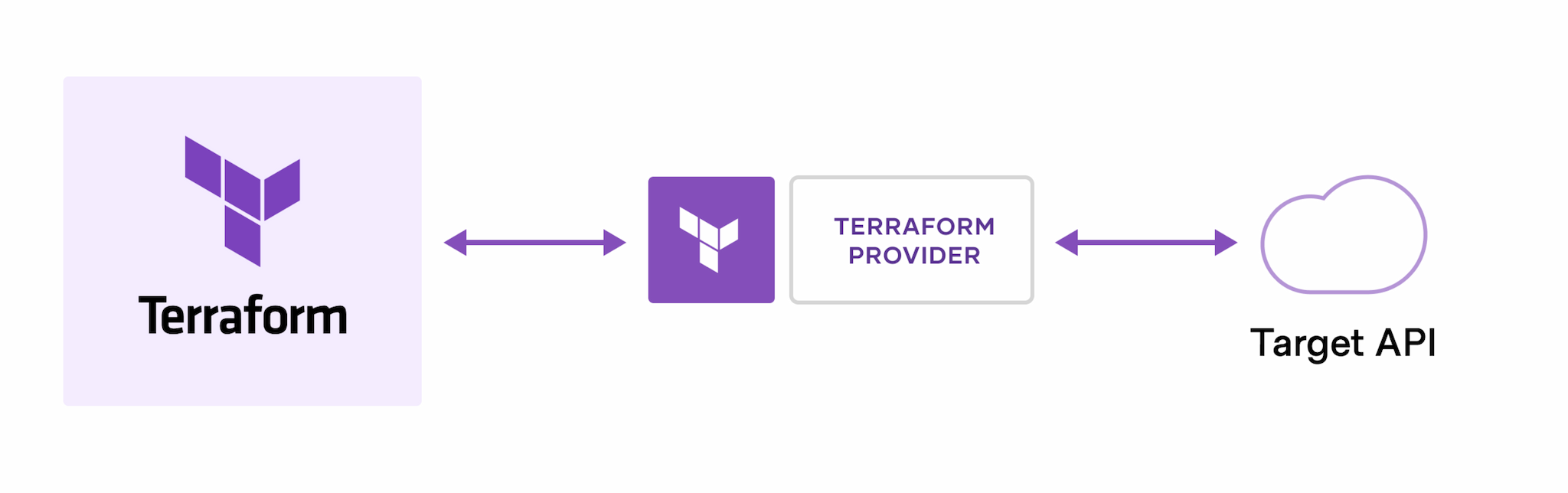
The core Terraform workflow #
- Write: You define resources, which may be across multiple cloud providers and services.
- Plan: Terraform creates an execution plan describing the infrastructure it will create, update, or destroy based on the existing infrastructure and your configuration.
- Apply: On approval, Terraform performs the proposed operations in the correct order, respecting any resource dependencies.
Link for the AWS resource definitions
How to setup AWS #
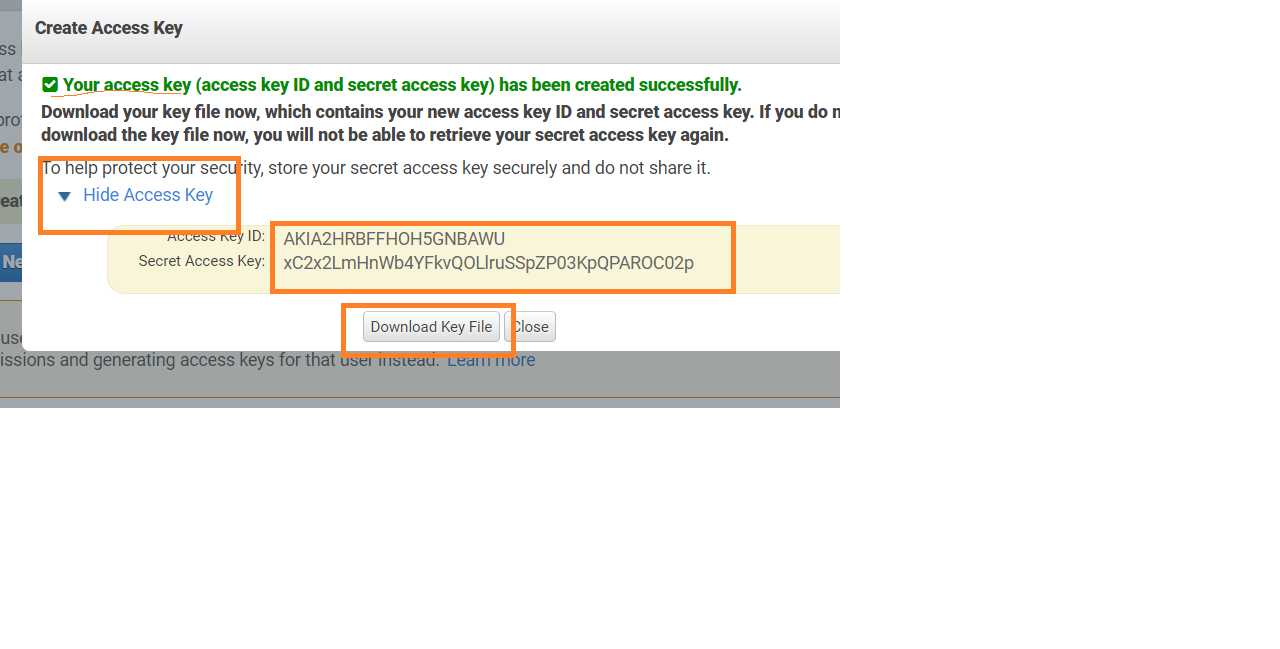
Setup Access Key #
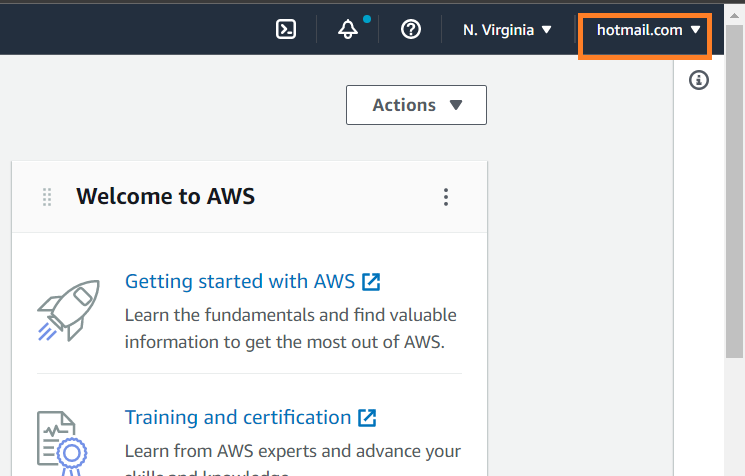
- To create one or more IAM users (console)
- Sign in to the AWS Management Console and open the IAM console at AWS IAM
- expand the list Access keys (access key ID and secret access key)
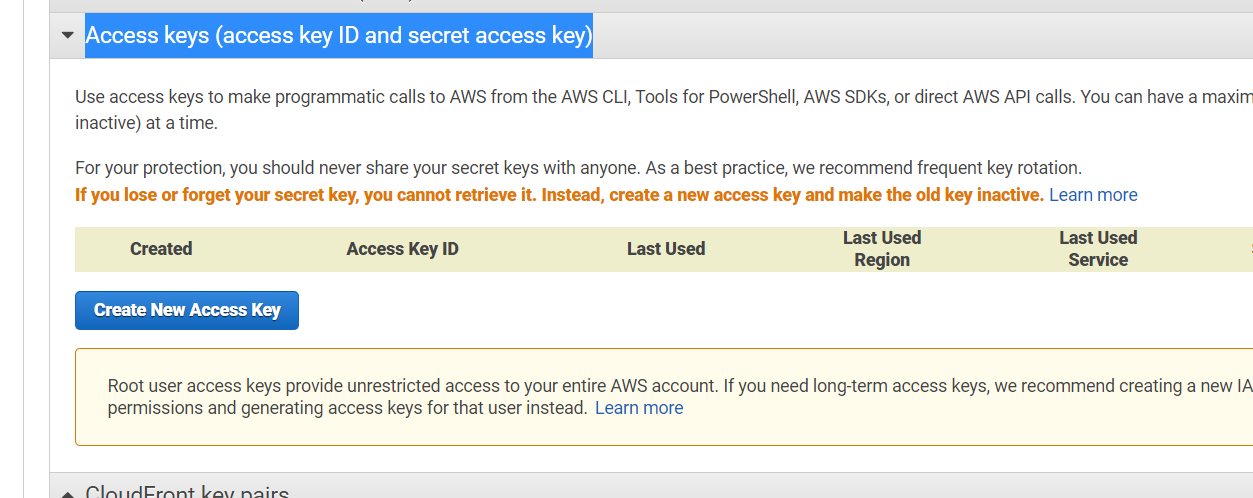
- Store the keys
- Installation of Terraform CLI Download Link
Let's Learn by Doing #
Let us get right into it
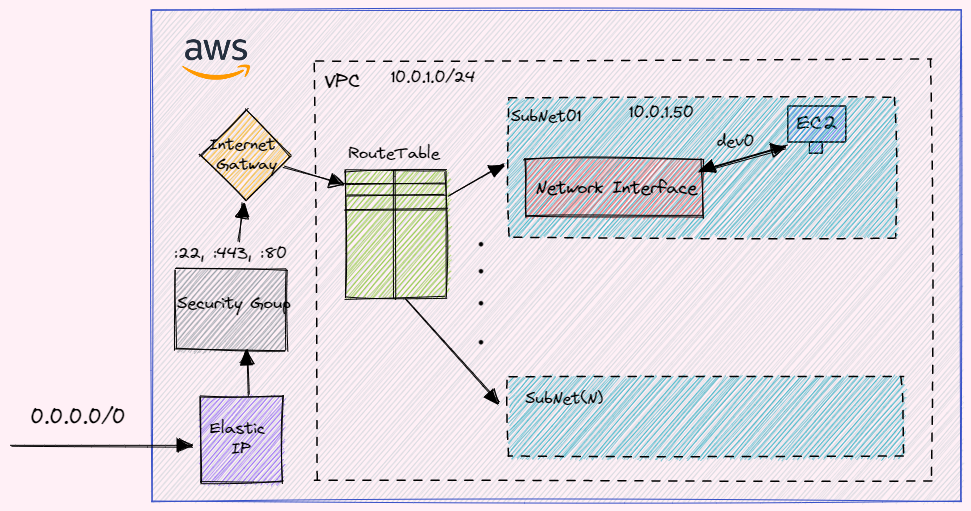
Resources to create a web server #
- EC2 - virtual machine on AWS
- VPC - Virtual Private Cloud is the isolation of the cloud for your resources to run. This is a logical way of separating of network
- Internet Gateway - to allow network traffic to reach inside vpc
- Subnet - It creates Network inside VPC, thus reducing the network hopping
- RouteTable - It stores the destination address where network traffic from your subnet or gateway is to be directed.
- Associate the RouteTable and Subnet - connect both of them
- Security Group - to Allow which port and from what Client IP address it came
- Network Interface - It allows communications between computers connected to the Subnet
- Elastic IP - it's a service by AWS which provides the dynamic IP during creation.
Let's write the configuration files #
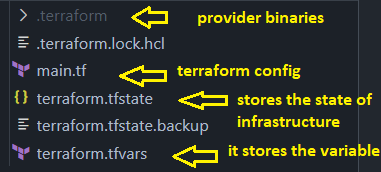
terraform.tfvars #
client-ip-access = {
  ssh = "0.0.0.0/0"
  https = "0.0.0.0/0"
}main. tf #
provider "aws" {
  region  = "us-east-1"
  access_key = "<provider access key>"
  secret_key = "<provider secret key>"
}


# vpc
resource "aws_vpc" "prod-vpc" {
  cidr_block = "10.0.0.0/16"
  tags = {
    Name = "prod-vpc"
  }
}

variable "client-ip-access" {
  description = "ip address for the client to access the host"
  type = map(string)
}

# internet gateway
resource "aws_internet_gateway" "gw" {
  vpc_id = aws_vpc.prod-vpc.id

  tags = {
    Name = "prod-gateway"
  }
}

# route table
resource "aws_route_table" "prod-rt" {
  vpc_id = aws_vpc.prod-vpc.id

  route {
    cidr_block = "0.0.0.0/0" # any ip can access
    gateway_id = aws_internet_gateway.gw.id
  }

  route {
    ipv6_cidr_block        = "::/0"
    gateway_id = aws_internet_gateway.gw.id
  }

  tags = {
    Name = "prod-rt"
  }
}

# subnets
resource "aws_subnet" "prod-subnet" {
  vpc_id     = aws_vpc.prod-vpc.id
  cidr_block = "10.0.1.0/24"
  availability_zone = "us-east-1a"

  tags = {
    Name = "prod-subnet"
  }
}

# join subnets and route table by association
resource "aws_route_table_association" "a" {
  subnet_id      = aws_subnet.prod-subnet.id
  route_table_id = aws_route_table.prod-rt.id
}

# security
resource "aws_security_group" "allow_http" {
  name        = "allow-web-traffic"
  description = "Network traffic allowed"
  vpc_id      = aws_vpc.prod-vpc.id

  ingress {
    description      = "HTTPS"
    from_port        = 443
    to_port          = 443
    protocol         = "tcp"
    cidr_blocks      = ["0.0.0.0/0"] # so as to make anyone to reach the server
    # cidr_blocks      = [var.client-ip-access.https]
  }

  ingress {
    description      = "HTTP"
    from_port        = 80
    to_port          = 80
    protocol         = "tcp"
    cidr_blocks      = ["0.0.0.0/0"] # so as to make anyone to reach the server
  }

  ingress {
    description      = "SSH"
    from_port        = 22
    to_port          = 22
    protocol         = "tcp"
    cidr_blocks      = ["0.0.0.0/0"] # so as to make anyone to reach the server
    # cidr_blocks      = [var.client-ip-access.ssh]
  }

  egress {
    from_port        = 0
    to_port          = 0
    protocol         = "-1"
    cidr_blocks      = ["0.0.0.0/0"]
  }

  tags = {
    Name = "prod-security"
  }
}

# elastic ip
# It's recommended to denote that the AWS Instance or Elastic IP depends on the Internet Gateway. For example:
resource "aws_eip" "bar" {
  vpc = true

  associate_with_private_ip = "10.0.1.50"
  network_interface = aws_network_interface.prod-nic.id
  depends_on                = [aws_internet_gateway.gw]

  tags = {
    "Name" = "prod-eip"
  }
}

# network interface
resource "aws_network_interface" "prod-nic" {
  subnet_id       = aws_subnet.prod-subnet.id
  private_ips     = ["10.0.1.50"]
  security_groups = [aws_security_group.allow_http.id]

  tags = {
    "Name" = "prod-nic"
  }
}

# ec2
resource "aws_instance" "prod-ec2" {
  ami           = "ami-04505e74c0741db8d"
  instance_type = "t2.micro"
  availability_zone = "us-east-1a"

  network_interface {
    network_interface_id = aws_network_interface.prod-nic.id
    device_index         = 0
  }

  tags = {
    "Name" = "prod-ec2"
  }

  key_name = "terraform-access-ec2"

  user_data = <<-EOF
    #!/bin/bash
    sudo apt update -y
    sudo apt install nginx -y
    sudo systemctl start nginx
    EOF
}

output "server_public_ip" {
  value = aws_eip.bar.public_ip
}Lets Deploy #
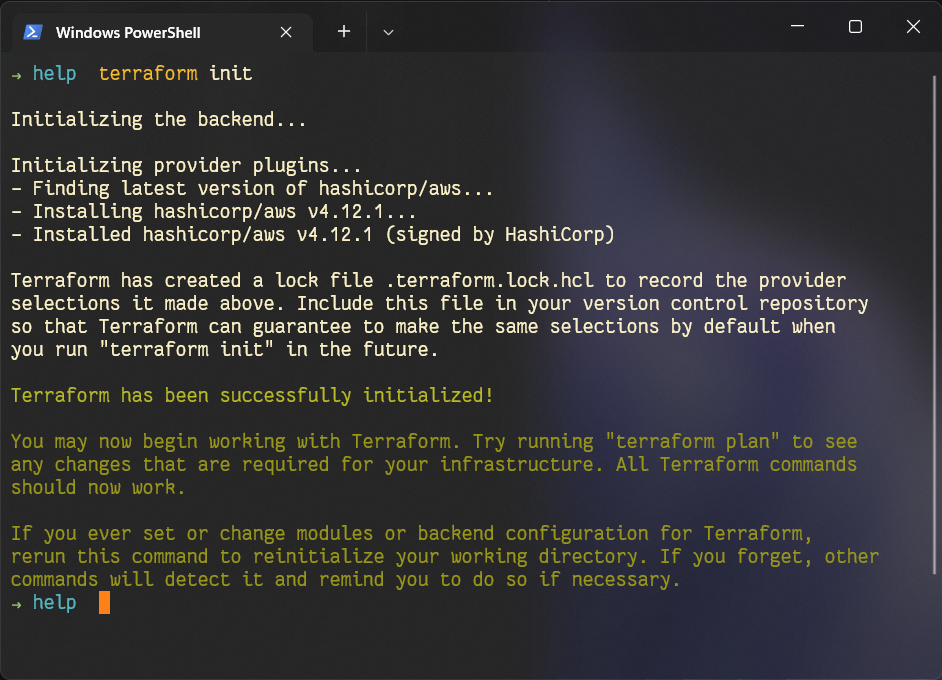
terraform init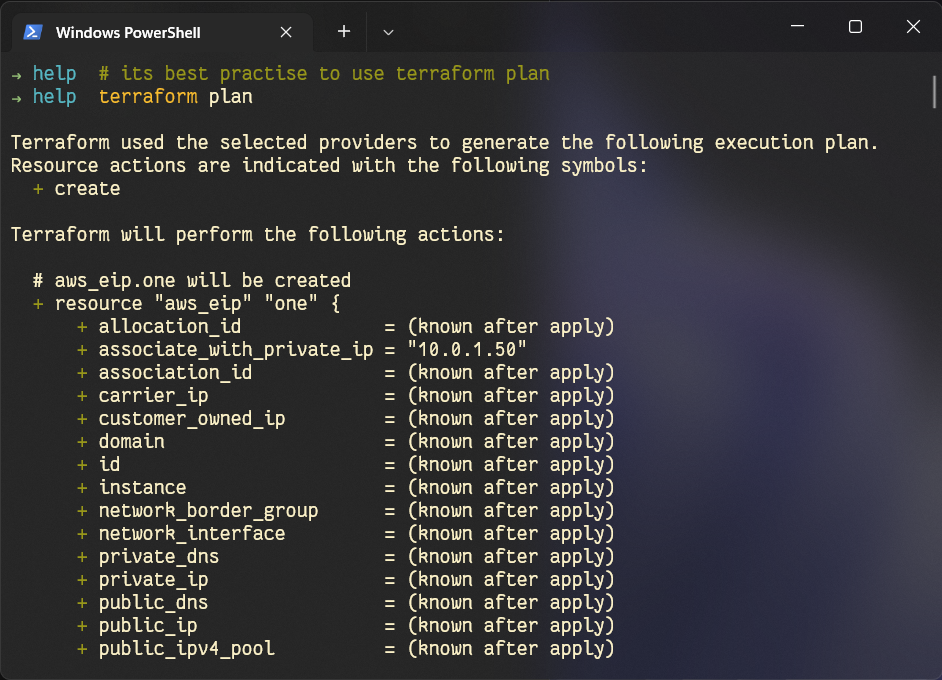
terraform apply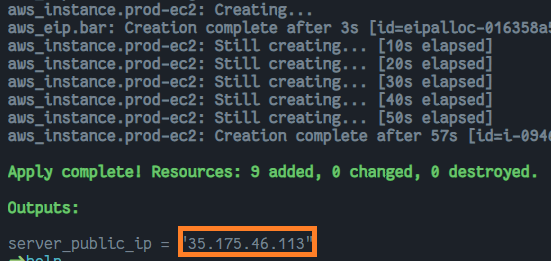
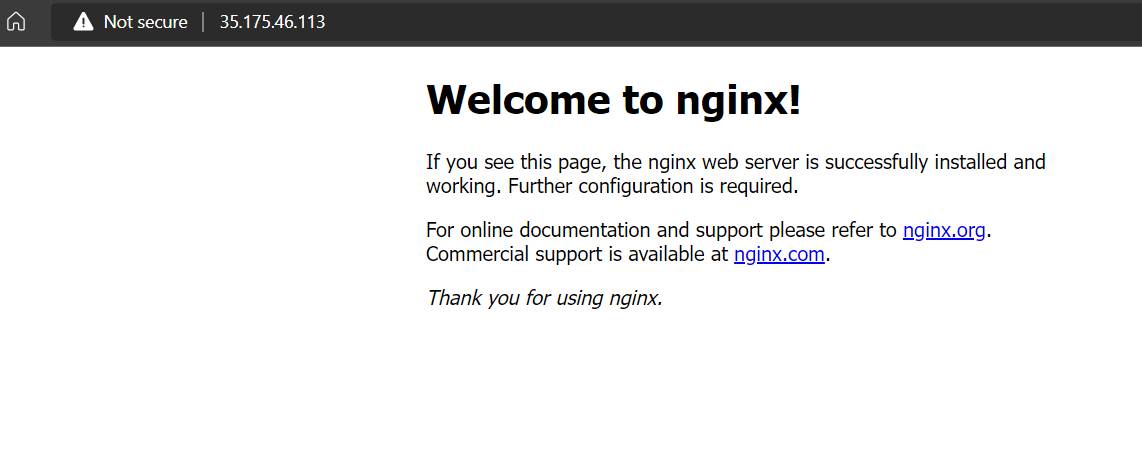
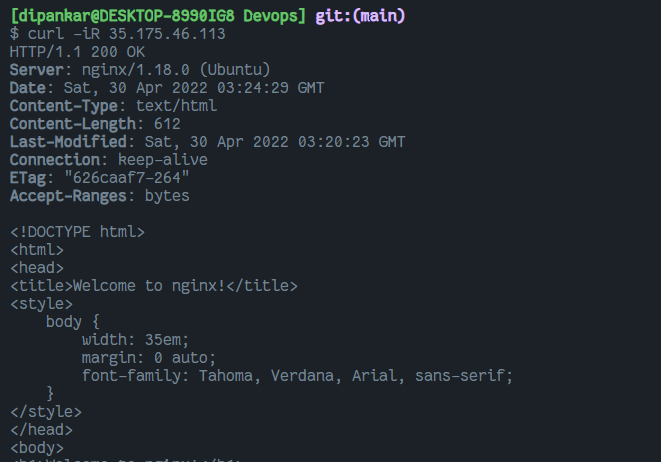
References #
Further read #
Hope it helps Happy coding👍🏼🥳
Dipankar Das
DevOps, Development and CLoud related stuff Kubesimplify ambassador and a OSS contributor to various CNCF projects
Get new posts in your inbox.
Spotted a typo or want to improve this post? Edit on GitHub →